Install IPTV Smarters PRO · on your Fire TV Stick
Follow the steps
- 1
Part 1 · Add the Downloader utility
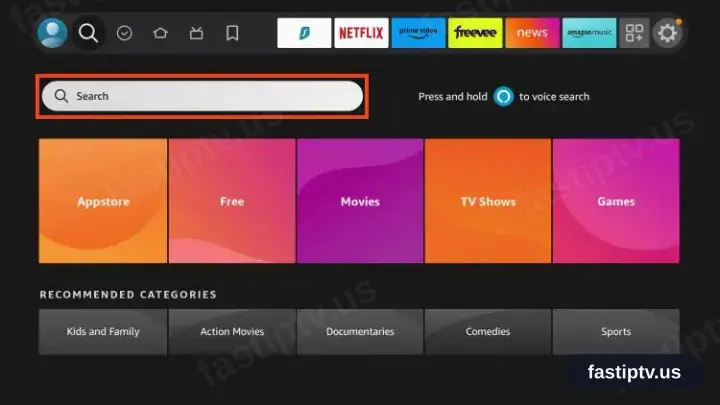
Open Fire TV search
Move to the top row of the home screen and select the magnifying glass.
- 2
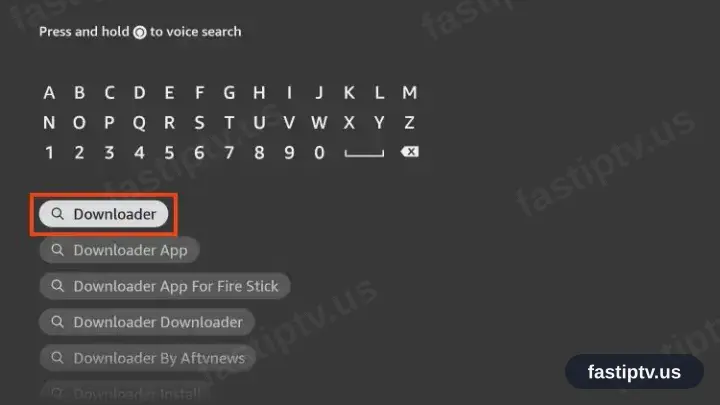
Type in Downloader
Enter Downloader on the on-screen keyboard. Suggestions narrow as you type.
- 3
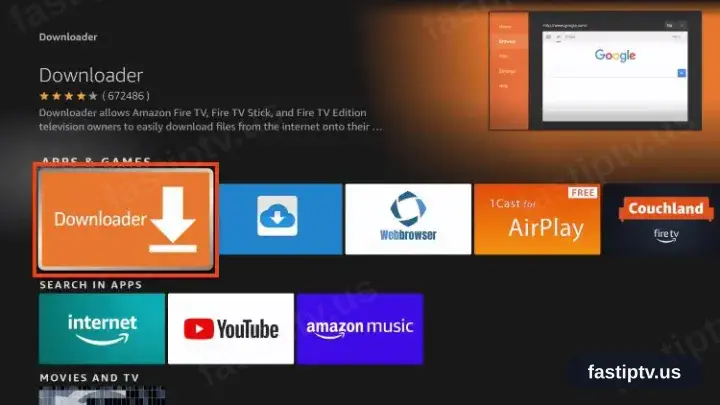
Pick the orange Downloader entry
Among the results, take the plain orange icon carrying a white arrow.
- 4
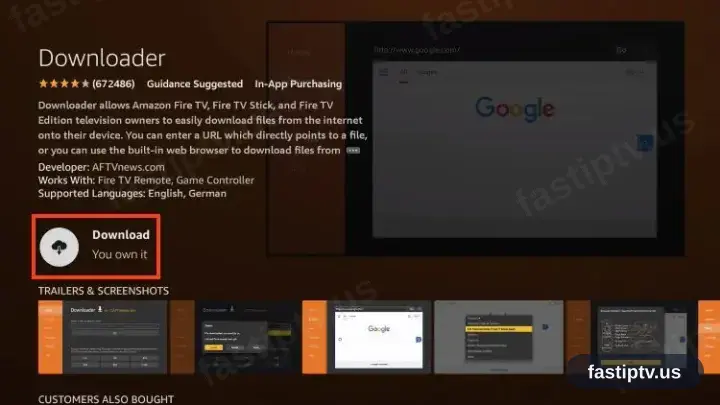
Select Download or Get
The label differs by device generation; both install from the Amazon Appstore.
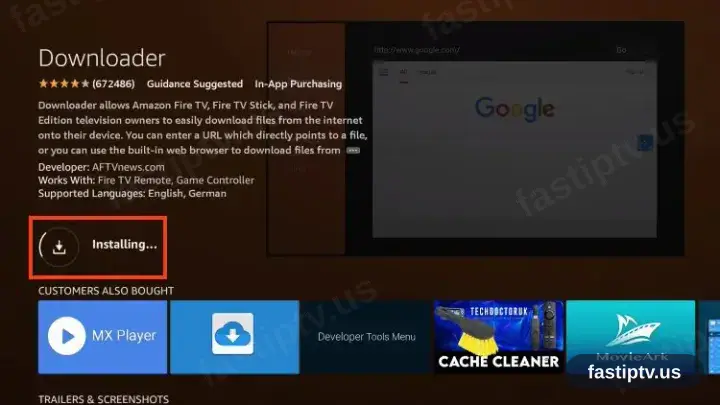
- 5
Let it finish
A progress ring runs for a few seconds. Do not press anything meanwhile.
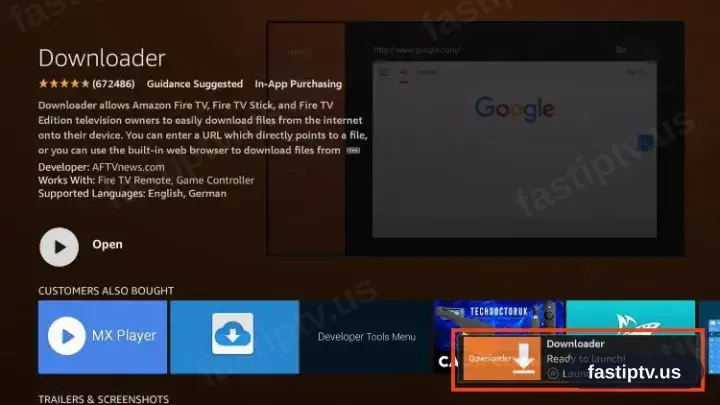
- 6
Installation complete
Open and Uninstall replace the install control once Downloader has landed.
- 7
Part 2 · Authorise Downloader
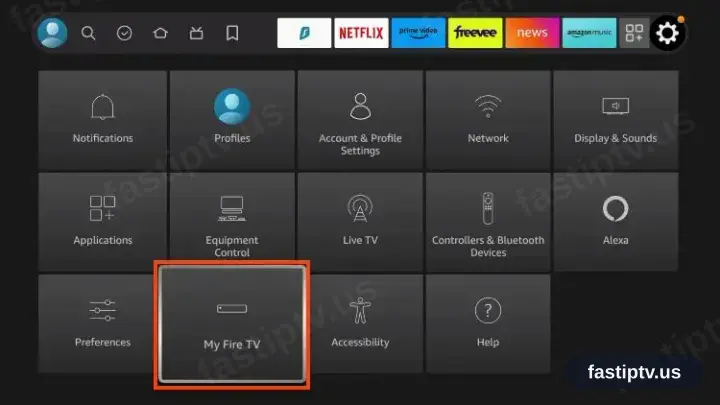
Go to Settings, then My Fire TV
Return to the home screen, open the gear icon and scroll along to My Fire TV.
- 8
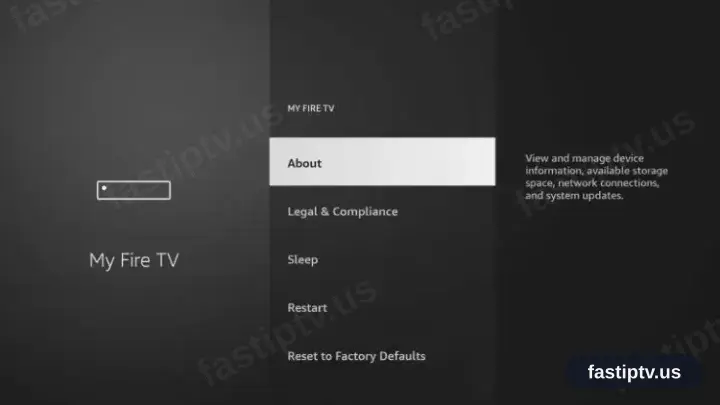
Enter About
About sits at the top of the My Fire TV list.
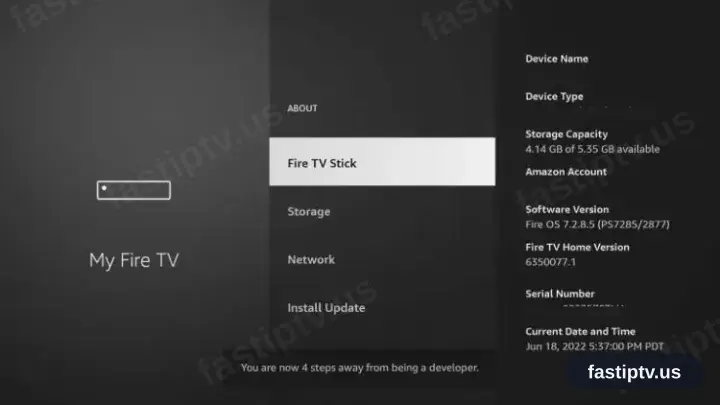
- 9
Press select seven times
Highlight your device name and press the select button seven times, until the developer notice appears.
- 10
Reopen Developer options
Step back to My Fire TV. A Developer options entry has appeared.
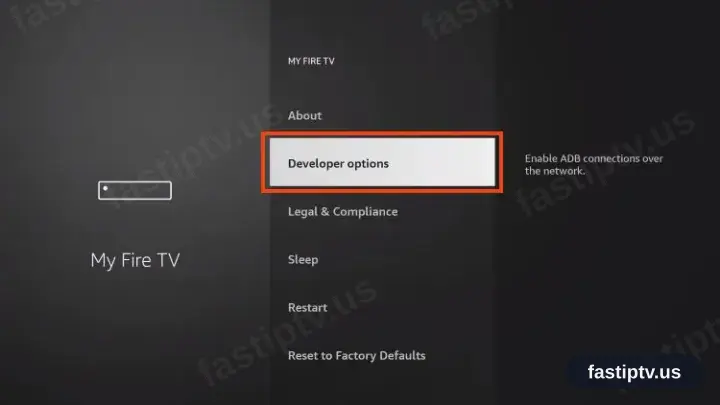
Some earlier Fire TV Sticks list Developer options directly under My Fire TV, with no trip through About.
- 11
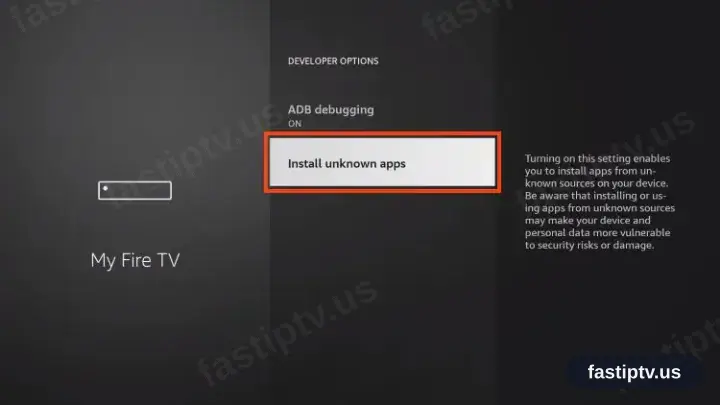
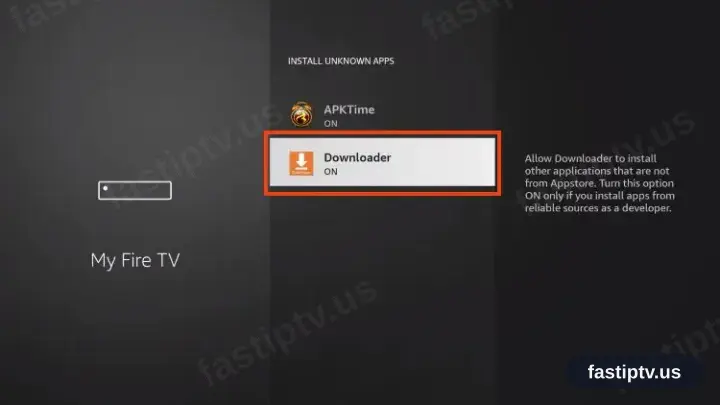
Enter Install unknown apps
Unknown means only that the source is not the Amazon Appstore.
- 12
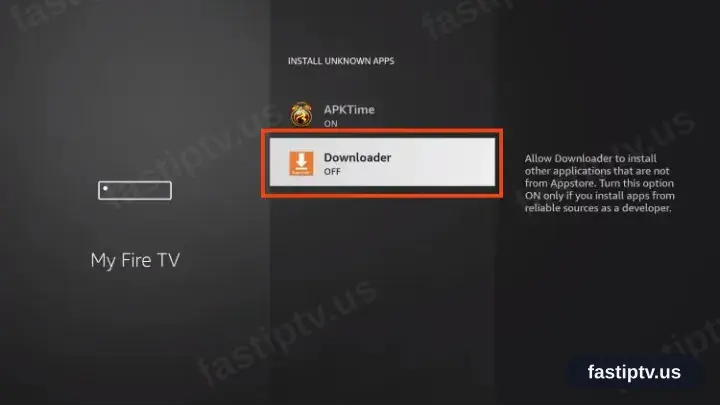
Switch Downloader on
Locate Downloader in the list of apps and toggle it on. Leave the remaining entries untouched.
- 13
Authorisation confirmed
Downloader may now install packages. The Firestick needs nothing further.
- 14
Part 3 · Add IPTV Smarters Pro
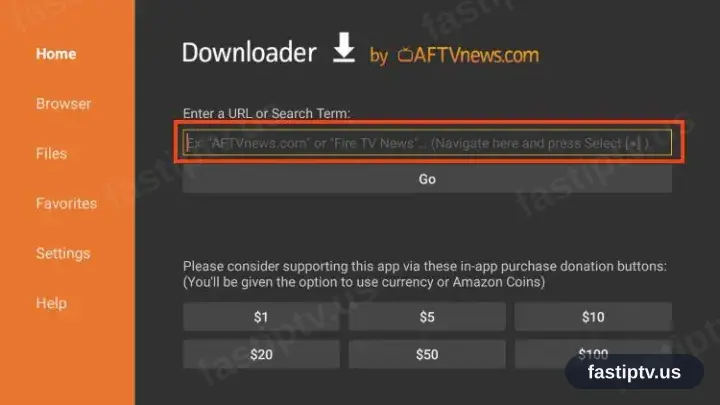
Open Downloader and focus the URL field
Launch Downloader and select the address box at the top of the Home tab.
- 15
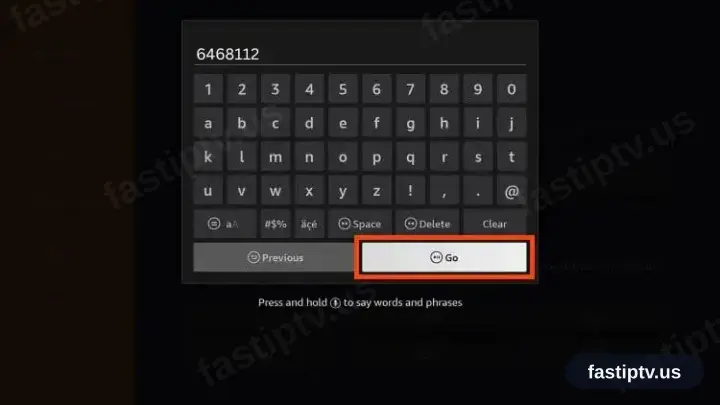
Enter 6468112, then Go
Six digits from the official IPTV Smarters site. Nothing else is typed.
- 16
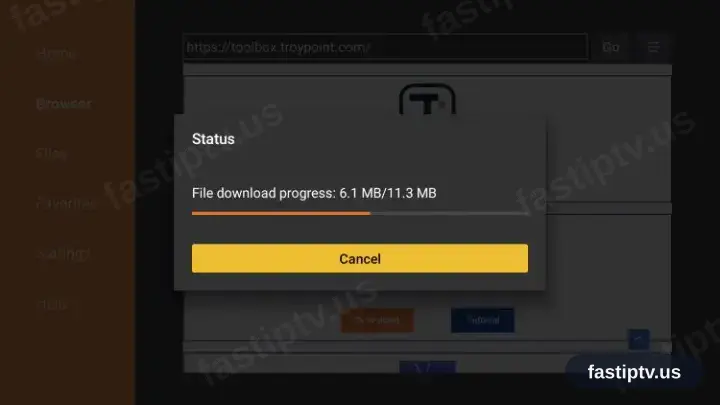
Let the download run
It begins by itself. Wait for the progress bar to complete.
- 17
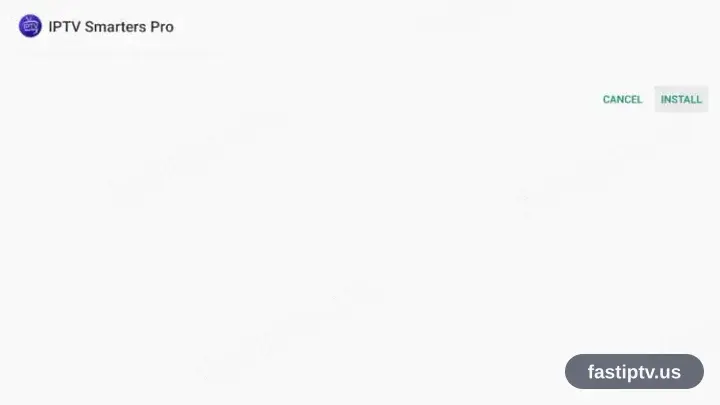
Select Install
The package screen appears on its own once the file has arrived.
- 18
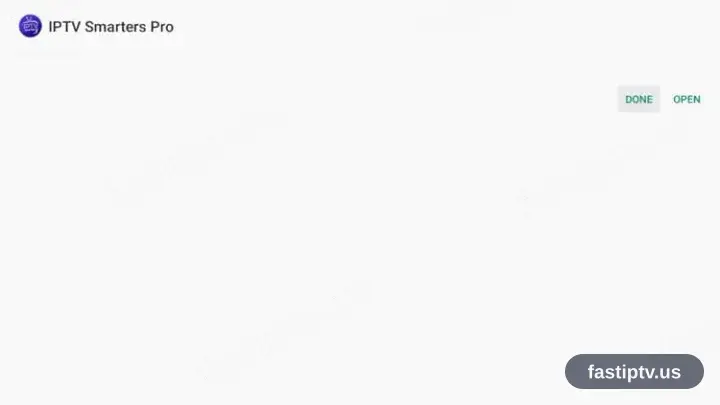
Select Open
Launch IPTV Smarters Pro from the completion screen.
- 19
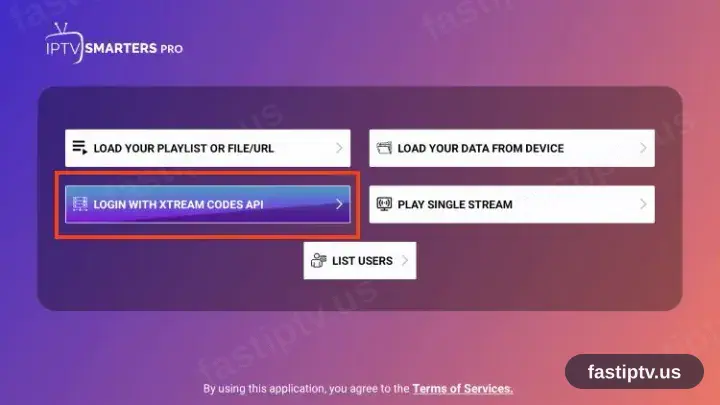
Select “Login with Xtream Codes API”
The welcome screen offers two methods. Take the Xtream Codes API option; ignore the M3U one.
- 20
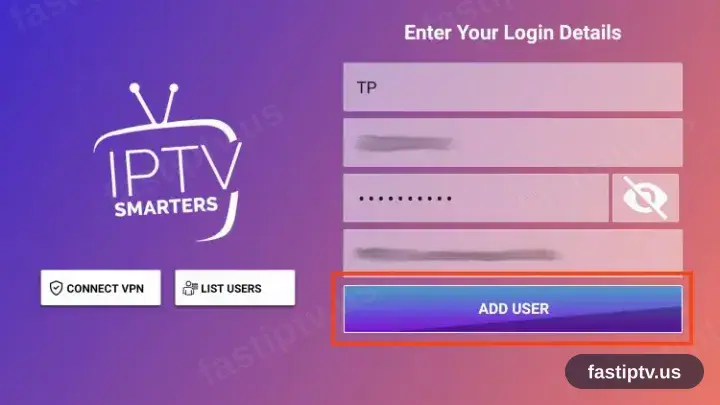
Fill in the three fields
Copy the server URL, username and password from your account on our website. All three are case sensitive.
- 21
Playback time
The channel list, films and series load in. Select a channel to begin playback.
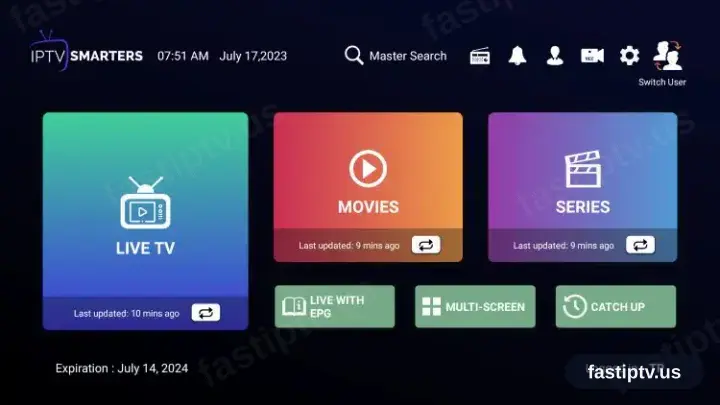
Installing IPTV Smarters PRO on Fire TV Stick: what is different
The Fire TV Stick runs Fire OS, so IPTV Smarters PRO comes from the Amazon Appstore — the Google Play version will not appear here.
If IPTV Smarters PRO is not in the Appstore, Fire OS permits sideloading: enable Apps from Unknown Sources for a downloader app under Settings › My Fire TV › Developer Options.
Older Sticks ship with very little free storage. Uninstall unused apps before installing IPTV Smarters PRO, or the download fails near the end.
Your Fast IPTV login details (username, password & server URL, M3U link or MAG portal URL) are in your account on our website as soon as your subscription is active. Can't find them? Contact support and we'll help.
Get your subscription
Get Started