Install HotPlayer · on your Windows
Follow the steps
- 1
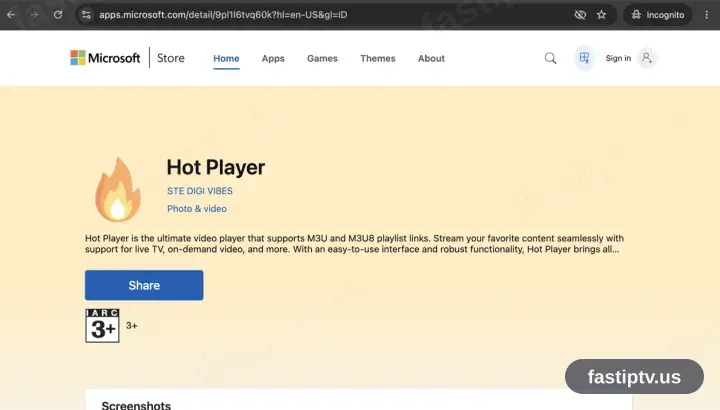
Add Hot Player from the Microsoft Store
Open the Microsoft Store on the PC and search Hot Player, or use the button above. Choose Get and wait. A trial is included; the playlist licence is bought from HotPlayer afterwards.
- 2
Launch Hot Player
Launch it from the Start menu.
- 3
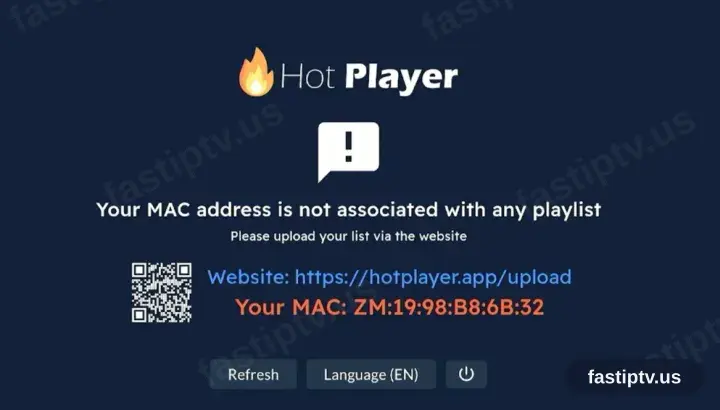
HotPlayer requests a playlist
On first launch HotPlayer reports no playlist and displays a device ID alongside hotplayer.app/upload. Leave the screen where it is.
- 4
Register the playlist at hotplayer.app/upload
From a browser, open hotplayer.app/upload. Set the source to Xtream Codes, supply the server URL, username and password from your account on our website, and save.
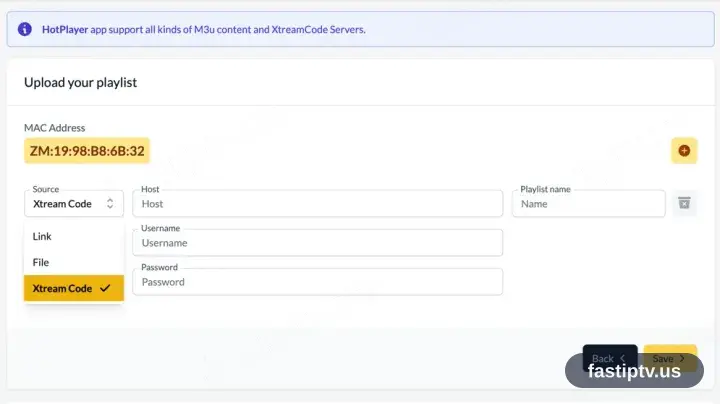
The browser on the same PC is fine for this — the upload page is a website, not part of the app.
- 5
Return to the app and select Refresh
Back in Hot Player, choose Refresh. The saved playlist is picked up straight away.
- 6
Playback time
The channel list, films and series load in. Select a channel to begin playback.
Installing HotPlayer on Windows: what is different
On Windows, HotPlayer is a desktop program — install it from the Microsoft Store or run the installer from the developer's site.
SmartScreen may warn about an installer it has not seen before. Choose More info › Run anyway only if you downloaded HotPlayer from its official page.
A wired Ethernet connection is worth using on a desktop PC: Wi-Fi adapters on older machines are the usual cause of stuttering at high bitrates.
Your Fast IPTV login details (username, password & server URL, M3U link or MAG portal URL) are in your account on our website as soon as your subscription is active. Can't find them? Contact support and we'll help.
Get your subscription
Get Started